Lead UX designer, 2 PMs, 1 tech team
Jan 2021 - March 2021
Affinity® is a financial analytics tool that provides patented classification data for portfolio managers to assess and control complex exposures in large-scale investment portfolios. However, the portfolio analysis page lacked the flexibility to easily toggle between different analytical lenses and holding periods, causing friction in the research process.
Our goal was to redesign the portfolio exposure workspace, improving its UX/UI to provide a more granular and intuitive data visualization experience, ultimately enabling investors to make faster, more informed decisions.
DESIGN PREVIEW
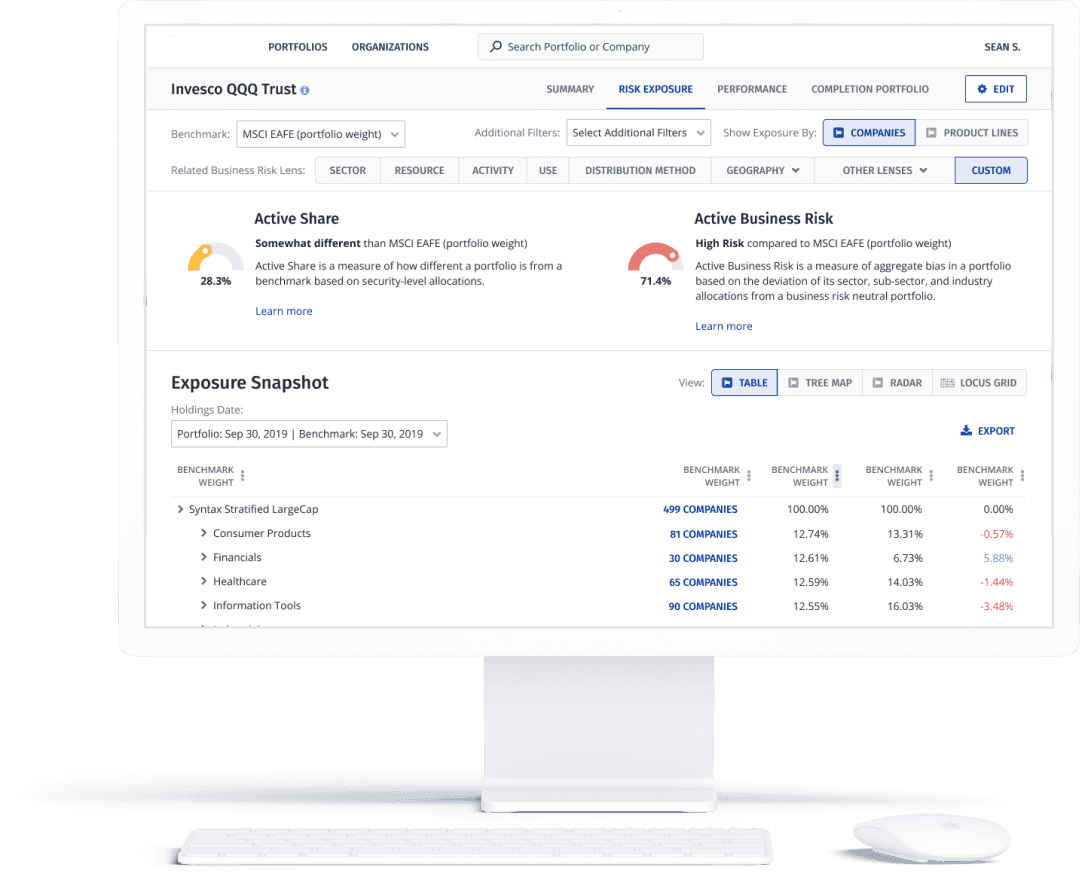
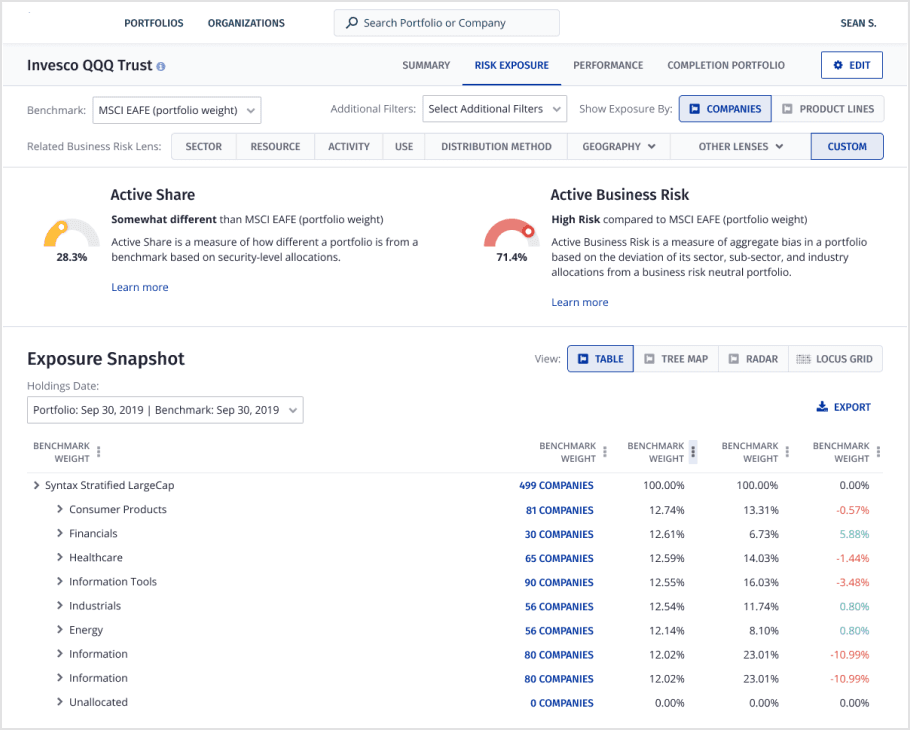
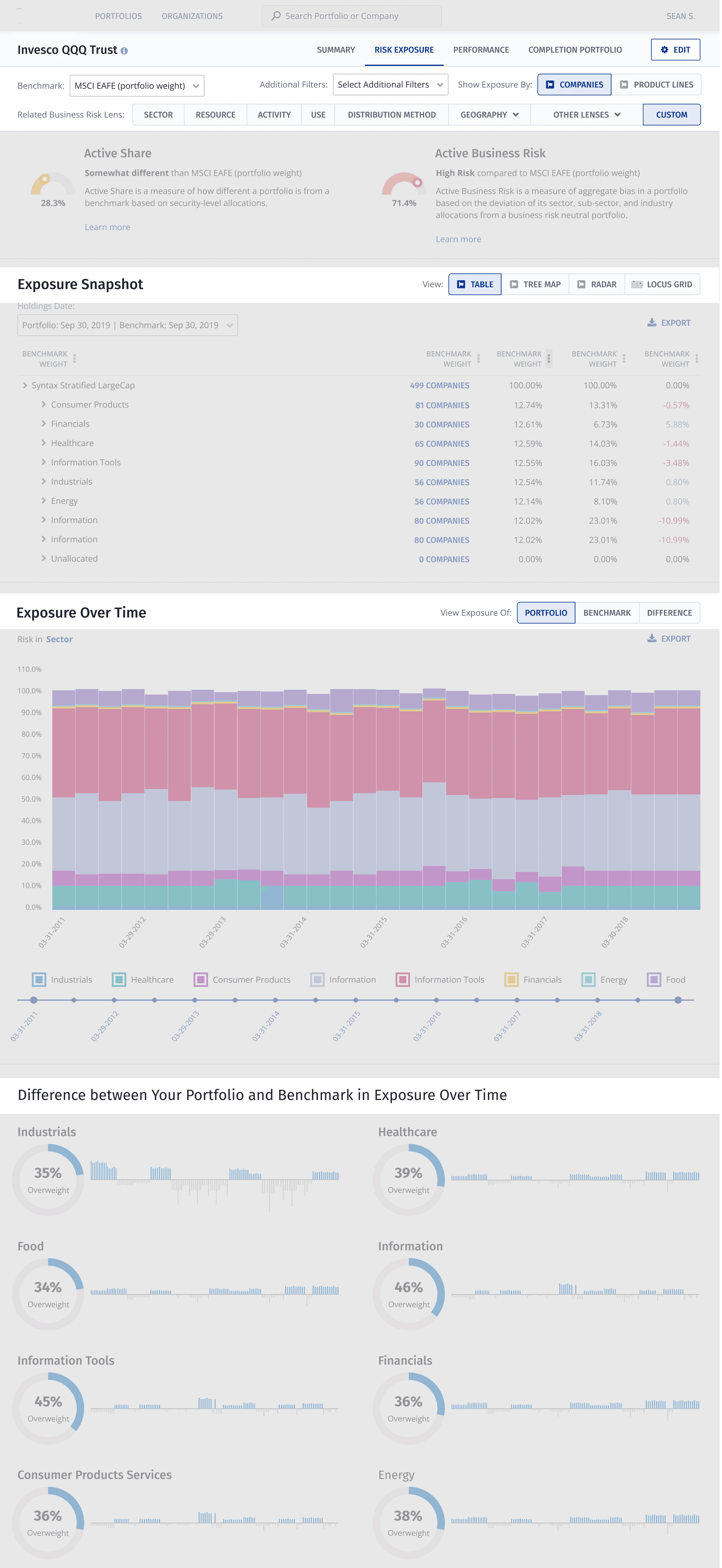
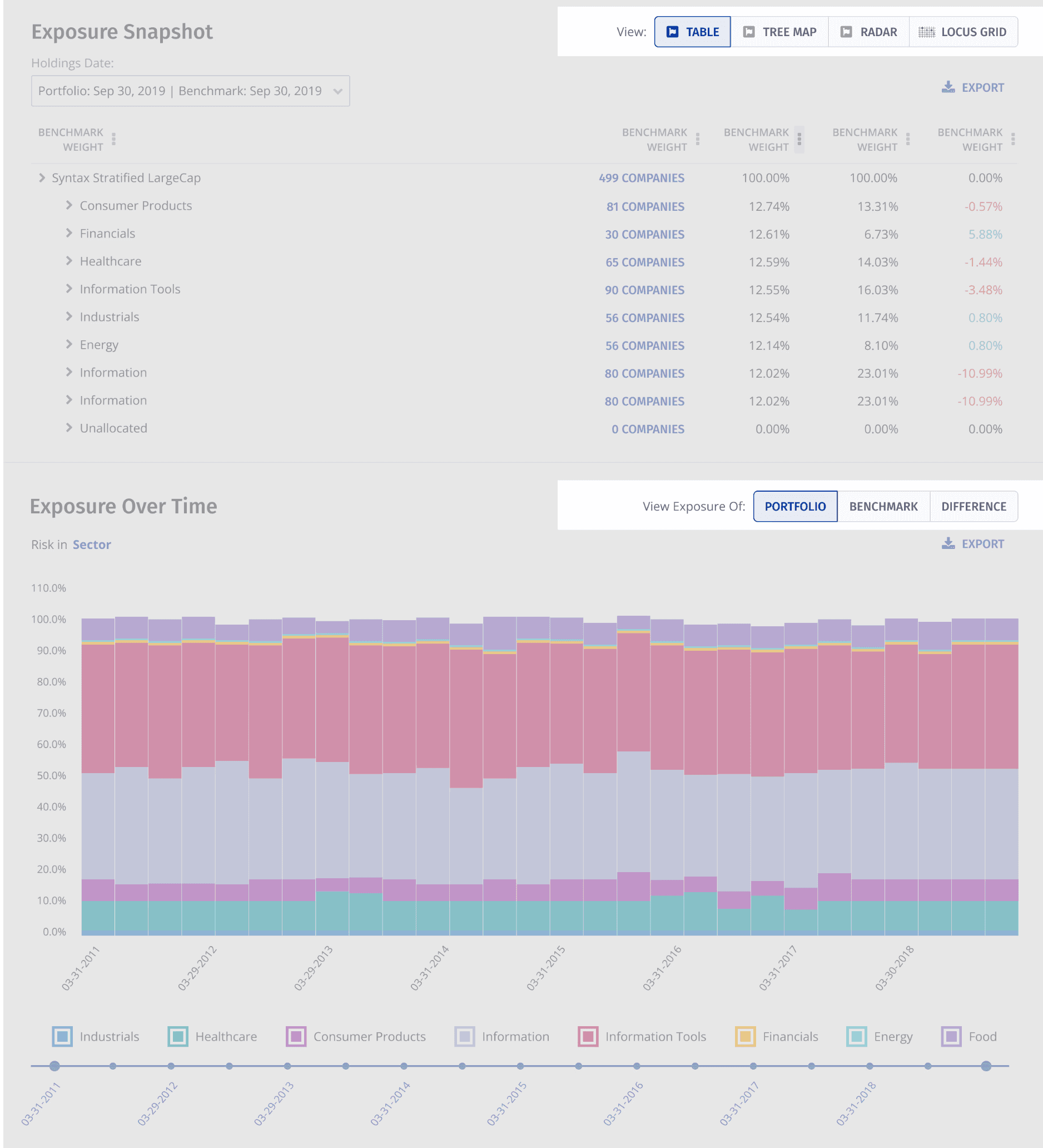
Portfolio exposure snapshot
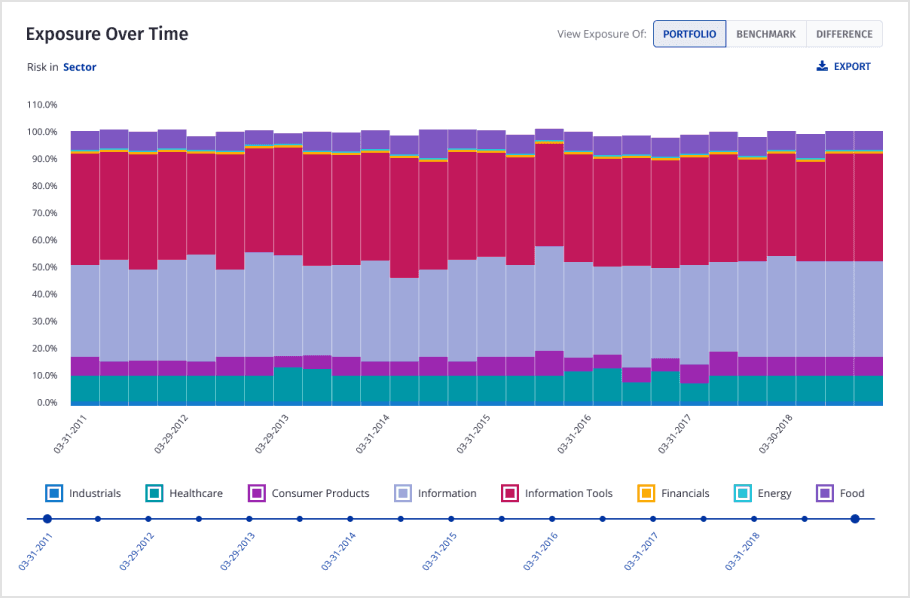
Portfolio exposure overtime
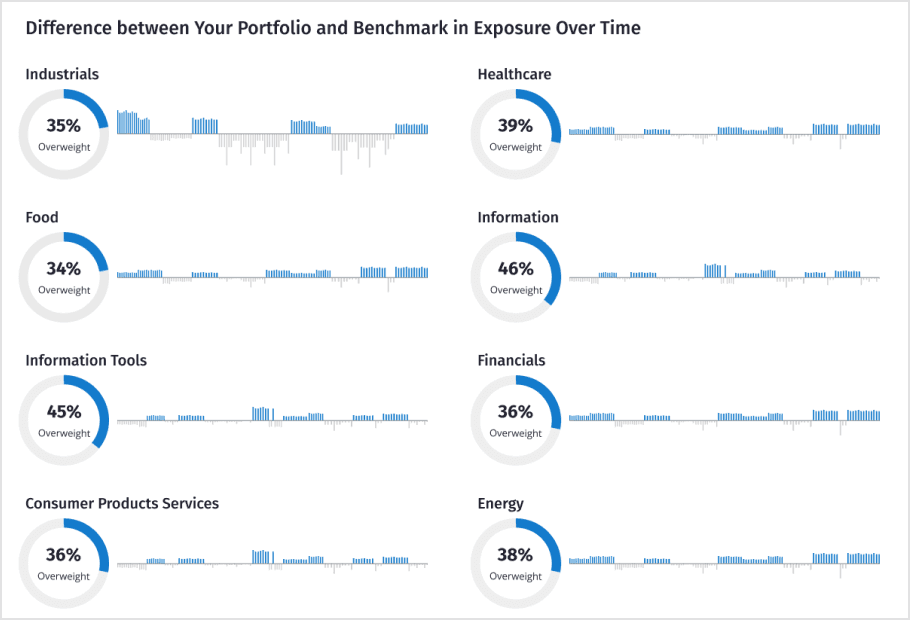
Difference between Your Portfolio and Benchmark in Exposure Over Time
DEFINING PROBLEMS
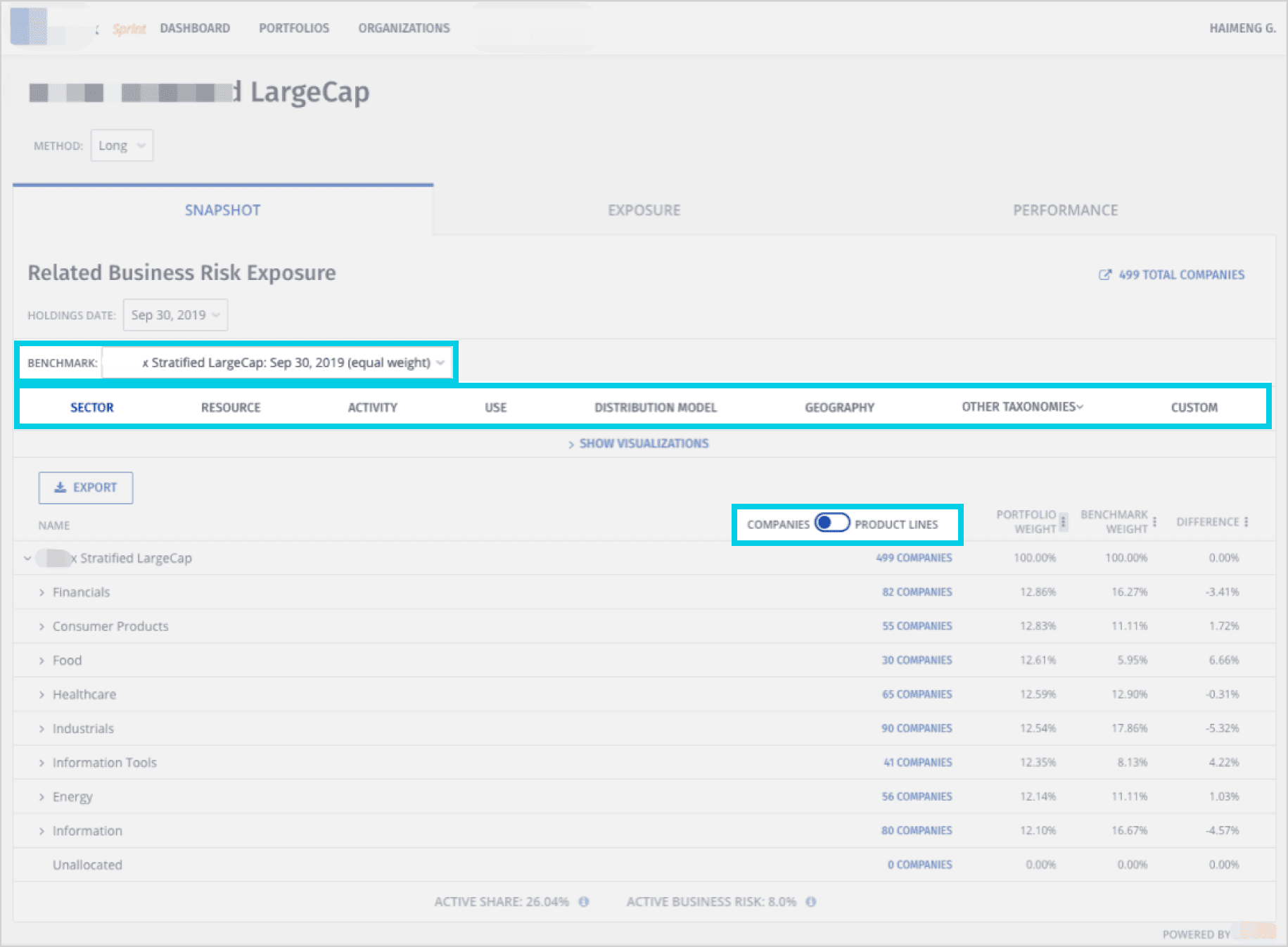
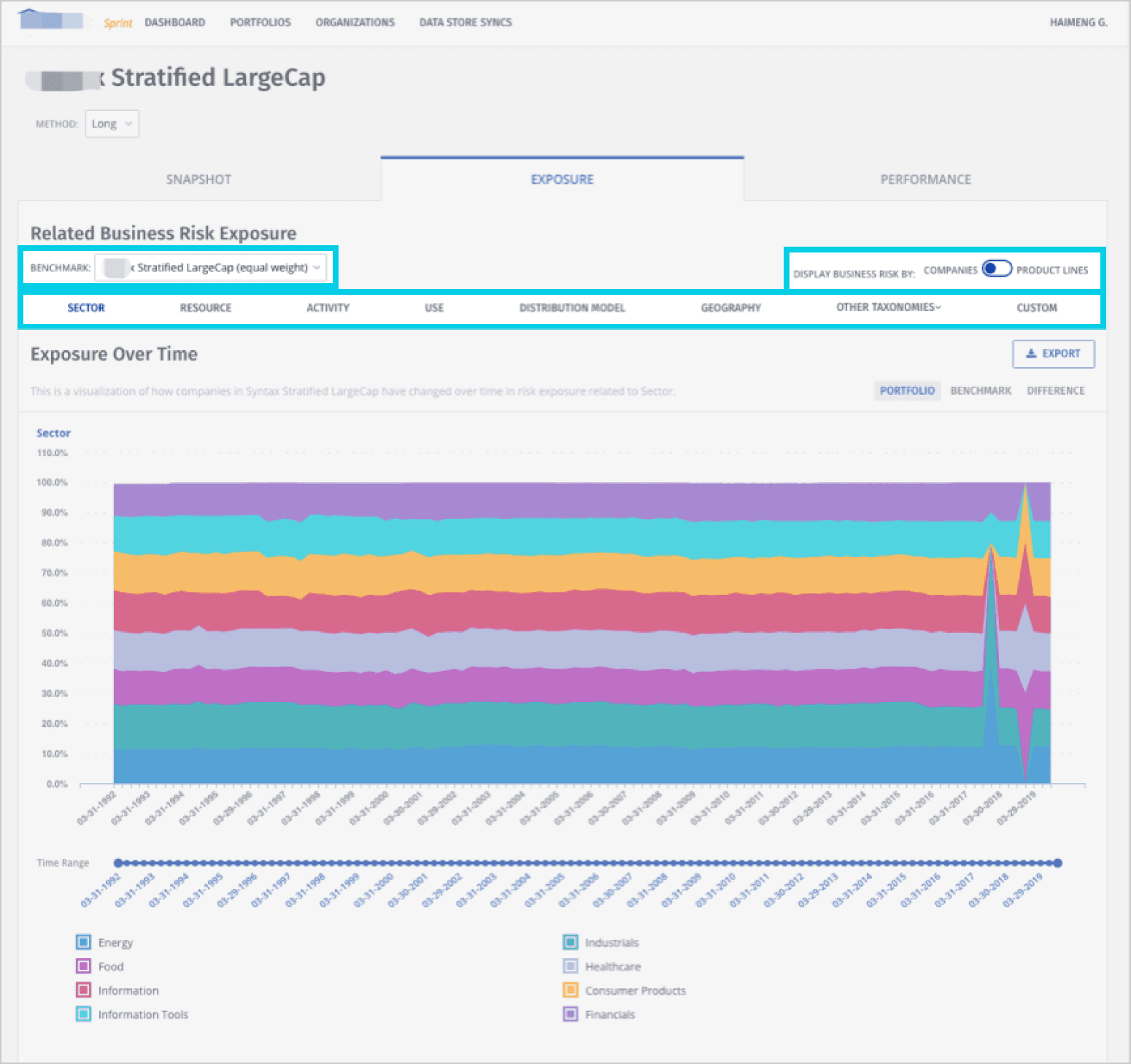
Redundant & Misplaced Information
Holdings date, benchmark, and business risks appear on both the snapshot and exposure pages, creating duplication and confusion
Metrics like active share and active business risks are shown on the snapshot page without clear relevance — users don't know what they mean in that context
Hidden & Inaccessible Visualizations
Chart options (table, tree map, pie chart) are buried inside a visualization expander, requiring extra clicks to access basic views
The default state hides functionality that users need upfront
Unclear Information Architecture
No clear hierarchy signals what to do first or what matters most
The page flow lacks a logical, guided order: users must navigate through three top-level tabs → holdings date & benchmark selectors → lenses → visualization expander → snapshot table before reaching the data they need
Cognitive Overload
The snapshot table contains too many sector buckets (portfolio, financials, consumer products, food, healthcare, industries, information tools, energy, unallocated) presented all at once
Too many functionalities are exposed simultaneously without prioritization, making it difficult to extract actionable insights
Portfolio Manager:
"Having the snapshot and exposure on separate tabs breaks my analysis flow. When I'm reviewing a portfolio, I need to see the current snapshot and historical exposure side by side — not jump back and forth between tabs."
SOLUTION
Design change: Add a sticky navbar with shared controls that persist across all views.
Description
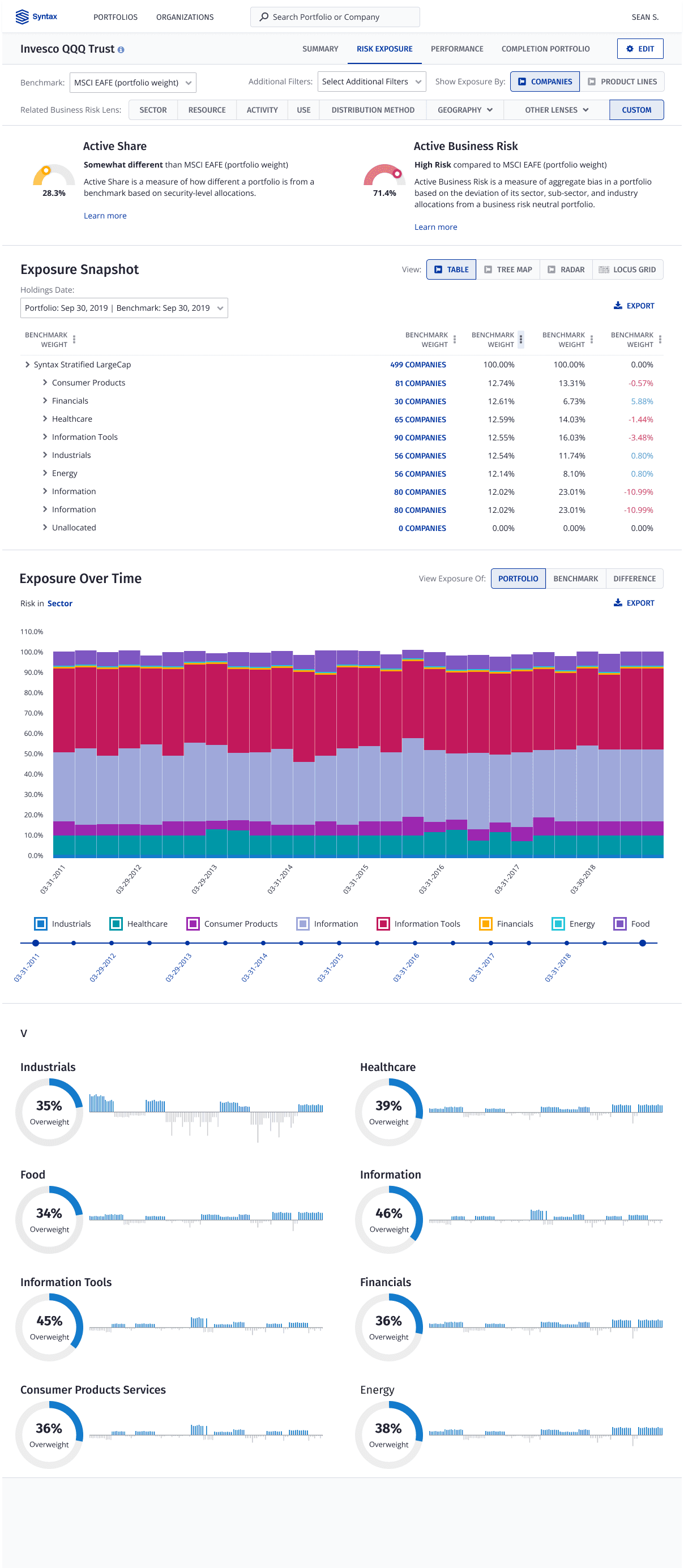
The layout now follows a top-down narrative: Global Filters → Key Risk Metrics → Detailed Exposure Snapshot → Historical Trends → Sector Breakdowns.
When a portfolio manager enters the risk exposure tab, a single sticky navbar displays the selected benchmark, company and product lines exposure toggle, and one related business risk lens. Any change to these controls simultaneously updates the exposure snapshot, exposure over time, and the benchmark difference view — eliminating the need to re-configure settings when switching between tabs.
Rationale
This structure establishes a clear visual hierarchy and reduces cognitive load. By placing vital risk summaries first, users immediately grasp the portfolio's health before diving into granular tables and charts. The unified filtering creates a guided, logical flow that ensures all subsequent data remains contextually relevant.
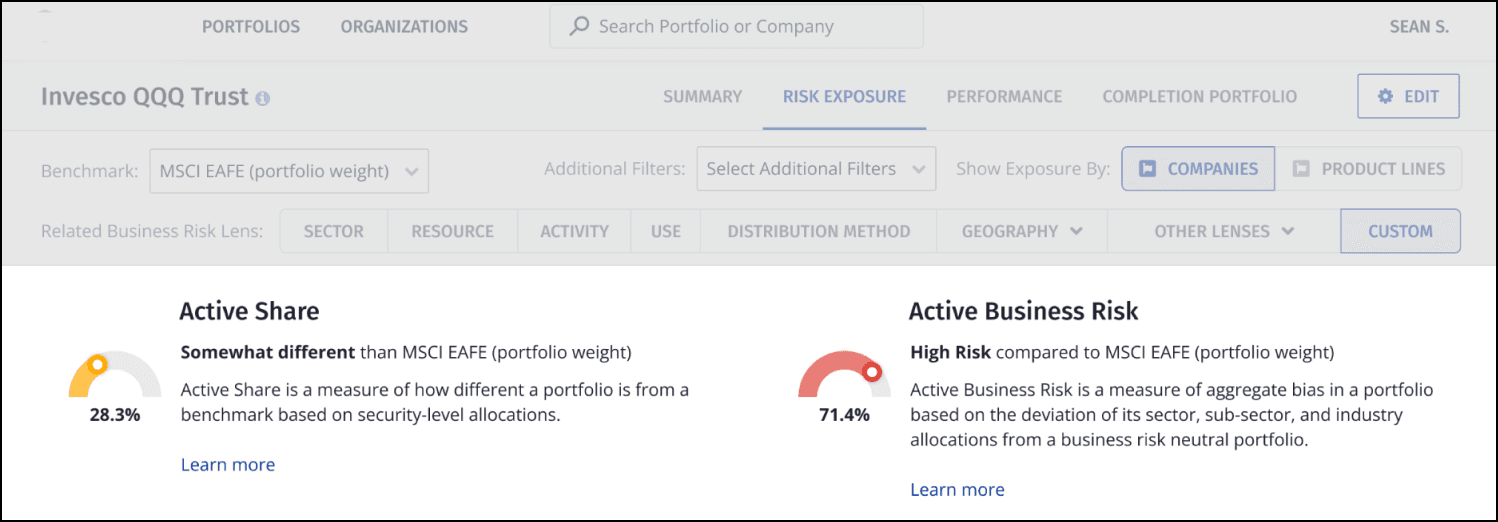
Design change: Replace raw metric labels with Gauge Charts that visually represent active share and active business risk as percentages, paired with plain-language definitions and a "Learn more" link.
Description
Each gauge displays the metric as a percentage relative to the selected benchmark. Active Share shows how differently the portfolio is constructed compared to the benchmark. Active Business Risk shows how the portfolio's risk profile compares to the benchmark. A one-line definition sits beneath each gauge, with a "Learn more" link for deeper exploration.
Rationale
Gauge charts give abstract percentages immediate visual meaning. Inline definitions reduce ambiguity without cluttering the page, and the "Learn more" link supports users who need depth without overwhelming those who don't.
Design change: Replace raw metric labels with Gauge Charts that visually represent active share and active business risk as percentages, paired with plain-language definitions and a "Learn more" link.
Description
Each gauge displays the metric as a percentage relative to the selected benchmark. Active Share shows how differently the portfolio is constructed compared to the benchmark. Active Business Risk shows how the portfolio's risk profile compares to the benchmark. A one-line definition sits beneath each gauge, with a "Learn more" link for deeper exploration.
Rationale
Gauge charts give abstract percentages immediate visual meaning. Inline definitions reduce ambiguity without cluttering the page, and the "Learn more" link supports users who need depth without overwhelming those who don't.
Design change: Replace the visualization expander with a filter that displays all available visualization options (table, tree map, radar) at first glance.
Description
The filter bar sits directly above the data display area, showing all chart type options as selectable buttons or tabs. Users can switch between table, tree map, and radarviews with a single click, without needing to open a dropdown or expander first.
Rationale
Surfacing all visualization options upfront eliminates unnecessary interaction steps and reduces cognitive load. Users can immediately see what's available and switch views seamlessly, supporting faster exploration and comparison of portfolio data across different visual formats.
FINAL DESIGN
Final design
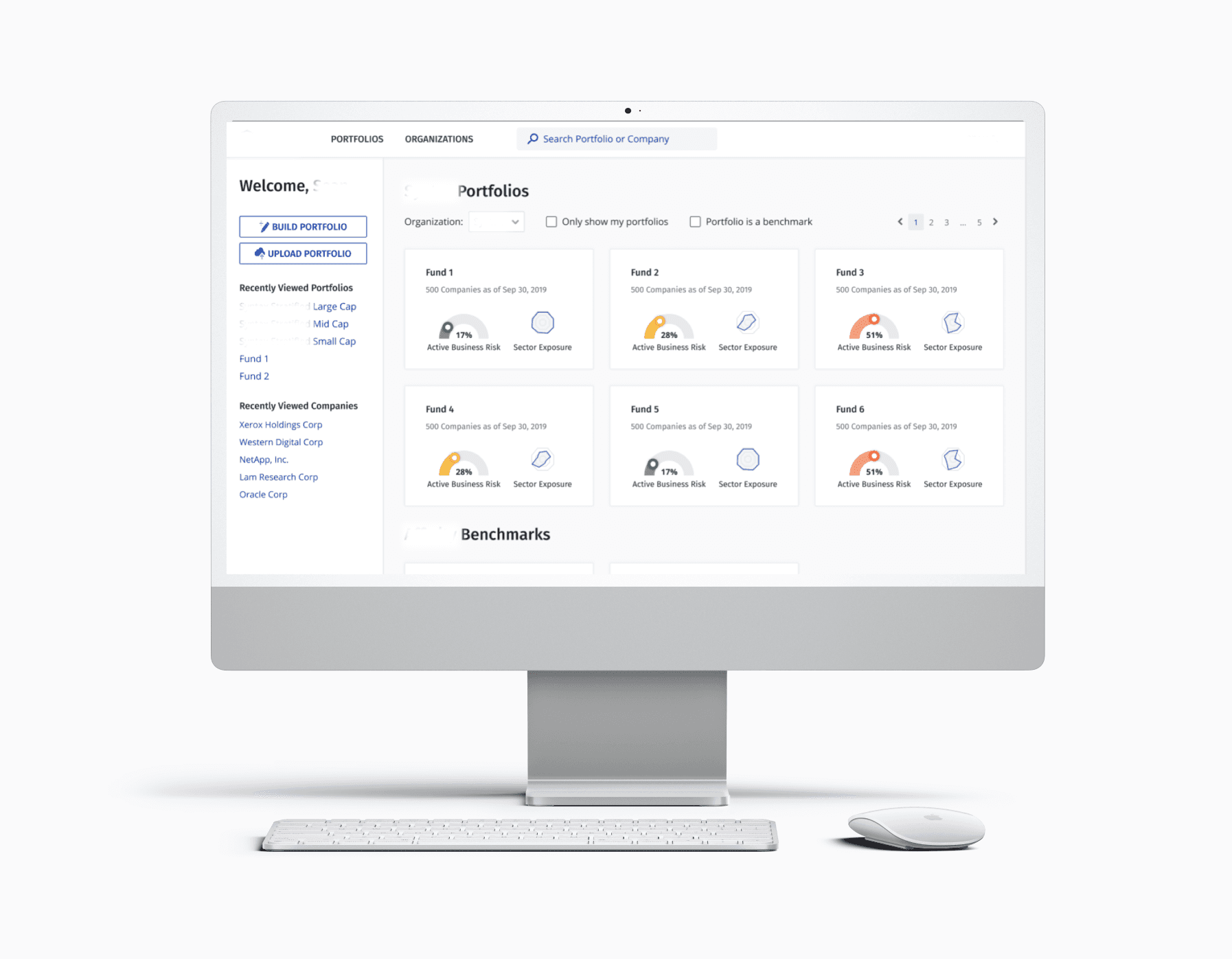
User-Centric Design: Personalized greetings and easy access to recently viewed items enhance engagement and satisfaction.
Efficiency and Usability: Search functionality, filters, and clear labels streamline navigation, saving time for users.
Comprehensive Overview: Key metrics like "Active Business Risk" and "Sector Exposure" provide quick yet detailed insights.
Flexibility and Control: Options to build, upload, and filter portfolios cater to diverse user needs and preferences.
Scalability and Consistency: The minimalist, consistent design supports growing datasets while maintaining clarity.
TAKE AWAYS
Take aways
Thrive in ambiguity 🌤
From this project, I learned how to rephrase the problem and frame the scope through research and evaluation. Going wide and then narrowing down, I explored varied forms of touchpoints and actions before moving straight to the design details. Where the challenge is vague, there are more opportunities and surprises await! An ambiguous situation gives me as a designer the chance to find my own voice and direction through user research.
Think beyond a designer’s role 🎩
Collaborating in an interdisciplinary environment, I learned that a well-operated product is more than its interfaces or interactions—it requires a whole team’s effort both at the frontstage & backstage. As a designer, I collaborated with other teams where I applied very different perspectives that I learned from them. I learned that it’s important to retain flexibility while still keeping my expertise. I’m excited to wear more different hats in the future!

Haimeng Gan © 2026